Settings
 Fast Delivery
 Free Shipping
 Incoterms
 Payment Types


 Marketplace Product

How Hardware Gets Hacked (Part 2): On-boarding
2026-03-18 | By Nathan Jones
Introduction
In the last article, we discussed the MITRE eCTF competition and how the “insecure example” for the 2023 competition worked. However, running that project would have required you to procure the exact development board used in the competition, with MITRE’s specific bootloader and MITRE’s specific tools. Instead, I want you to be able to follow along regardless of what hardware you have. Additionally, it was important to me to have certain developer “quality of life” features like a simulator and “black-box” tests to make building our attacks and defenses much smoother. In this article, we’ll take a closer look at what the source code actually does and how to build it, so that you can run the code for yourself. Even if you decide not to build and run the project, knowing how it gets built is important for understanding what information attackers have access to and where our system could be vulnerable before a single instruction is ever executed on our microcontrollers.

Challenge question!
We’re about to do some serious security work on a moderate complexity project. If you were joining the development team for this project, what questions would you have for the lead developer? What tools or quality-of-life features would you hope to have as you began your work? Answer to yourself and then continue reading.
Where to find the code
You can find my code at https://github.com/nathancharlesjones/howHardwareGetsHacked. I encourage you to download or clone that repository now so you can follow along! Setup instructions are located in the setup folder.
This project is under active development at the time of this publication. Check the project README for the most up-to-date information.
The following tutorial is based on the project state as of commit eff74cd.
A project in four builds
Let’s take a walking tour of the project by building and running our firmware four different ways.
I’ll orient you by briefly discussing the major components of the source tree.
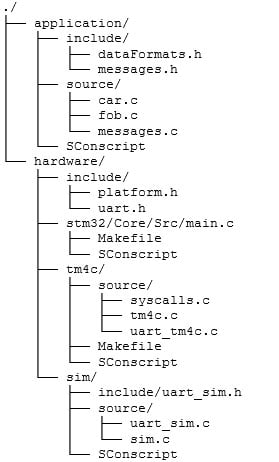
The two most important folders are application and hardware. The application folder contains car.c and fob.c (among a few others); all of the code that actually implements our application logic. These files are intentionally hardware-agnostic, though, and can only call the generic hardware functions that are listed in hardware/include/platform.h, such as loadFlashData(FLASH_DATA *dest) or setLED(color) (more on this later). This lets us target our application to potentially any hardware platform; all that’s needed are implementations of those functions in platform.h. Three such implementations are provided, one for the TM4C (the competition board), another for an STM32F4, and a third for a simulator that runs on your computer.
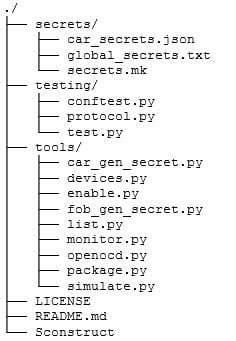
System secrets are stored, unsurprisingly, in secrets. At this point, this folder is mostly a placeholder, since we don’t have any system-wide secrets yet.
The testing folder contains the files needed by pytest to run the black-box tests of our firmware (more on this later). Of these, test.py contains the actual tests, and conftest.py and protocol.py are helper files.
The tools folder contains a number of different Python scripts that will make our lives easier as we’re developing this project, including some to generate secrets, package features, list attached hardware devices, or open a serial window to a device (monitor.py).
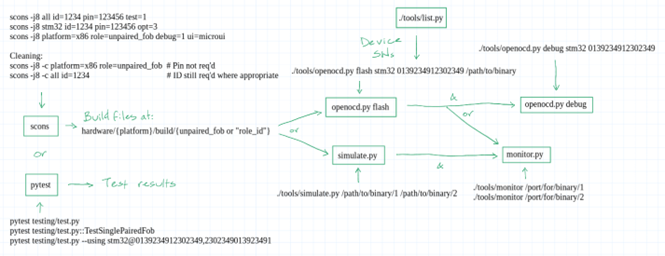
The project is built using a tool called scons. Once built, you will be able to test and interact with it using the openocd.py, simulate.py, and monitor.py tools I’ve written (yes, even without any actual hardware!). Alternatively, you can use pytest to run a suite of automated tests on the firmware. These tests can be executed either on the actual hardware or completely in software. These workflows are depicted below and will be demonstrated in detail in the rest of this article.
1) Simple simulation
Enter the following command to build a car, paired fob, and an unpaired fob for each of the supported platforms; for maximum effect, observe that inside each hardware/{platform} folder there is no hardware/{platform}/build folder yet:
scons -j8 all id=1234 pin=123456 ui=console feature1_flag=potato
This directs scons to build the “all” target. This is actually a list of targets, one for each combination of platform (i.e., “tm4c”, “stm32”, and “sim”) and “role” (i.e., “car”, “paired_fob”, and “unpaired_fob”). The cars, when built, need to know their IDs, and the paired fobs need to know their IDs and their pairing pins, so those are given in the command. The final executables and all build artifacts now reside in hardware/{platform}/build/{role}. (We’ll see what “ui=console” and “feature1_flag=potato” do shortly!)
Targeting multiple hardware platforms is straightforward once you understand that the application structure only expects a few things of the hardware:
- Be able to send out a serial message to either the HOST or another BOARD
- Turn an LED to a certain color
- Store and retrieve data from non-volatile memory
- Determine if a button has been pressed
Almost any microcontroller can support these actions. Targeting new microcontrollers only requires that we avoid specific function calls from specific HALs (such as GPIOPinWrite(GPIO_PORTF_BASE, GPIO_PIN_1, GPIO_PIN_1) from the TM4C HAL to turn an LED red). Instead, the application uses a more generic “setLED()” function. We can write different implementations for each microcontroller (including a facsimile of one that your computer can execute!), compiling and linking the proper files for the target platform (which scons handles for use). The application code is none the wiser.
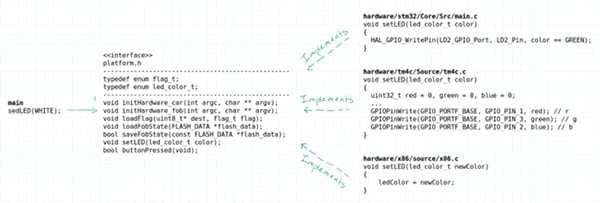
All of the hardware functionality that the application requires is defined in platform.h. Each hardware platform provides its own implementation (in the various hardware/{platform} folders). In a sense, platform.h is the interface class for which each of the hardware/{platform} folders provide their own concrete implementations.
Challenge question!
What other microcontroller would you want to target (possibly one you have that’s readily accessible so that you can test out our code on real hardware)? What would the implementation of platform.h look like for that microcontroller?
At this point, you could program this code onto an STM32 or TM4C microcontroller to see the project in action, but you can do one better. One of the supported platforms is a simulation, which means that you can run the “car” or “paired fob” firmware as its own executable on your computer right now! It’s a little simulation that you can use to test out your code! Let’s do that now by running the following command:
./tools/simulate.py
hardware/sim/build/paired_fob_1234/paired_fob_1234
hardware/sim/build/car_1234/car_1234
(The “1234” needs to match the car ID you provided during the build step, so replace that value if you need.)
You should now see two windows open: one for the paired fob and another for the car. Because you built “all” with “ui=console”, the car and fob simulations use a console to mimic the real hardware.
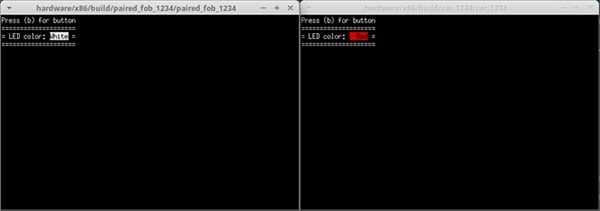
The simulate.py file started both of these simulations and connected them together using a virtual serial port, just like they had been flashed to two development boards and had their BOARD UART ports wired together.
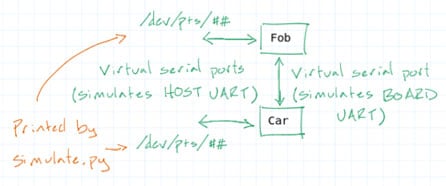
The simulate.py tool also displays the name of the virtual serial port that’s connected to each application’s “HOST” UART. Test it out by connecting to the car’s HOST UART using your serial terminal of choice. For instance, you could connect with the picocom tool in a separate terminal window using this command:
picocom {car port} -b 115200
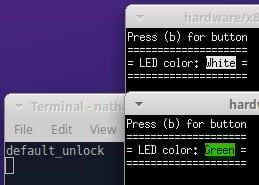
The car application has no interactivity (just like in real life), it just displays the current LED color. The fob application, though, can simulate a button press if you press “b” (make sure the window is in focus). This triggers an “unlock” action on the fob, and you should see the default unlock flag emitted on the serial terminal connected to the car when you do! In addition, the car console window will show an updated status for the car by changing the LED to green (meaning that the car is now unlocked).
Next, let’s enable a feature on this fob. (Fobs, remember, have no enabled features by default.) You can “package” a feature for a fob by running the package.py tool:
./tools/package.py --id 1234 --num 1
This command packages feature number 1 for the car whose ID is 1234. By default, package files will be saved to application/packages/{id}_{num}. You can provide an alternate path and filename by supplying --out on the command line.
Then you can enable the feature by running the enable.py tool:
./tools/enable.py --port {fob port} --path
application/packages/1234_1
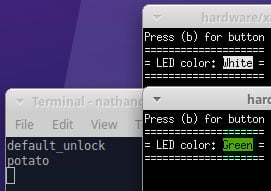
If you press ‘b’ again to unlock the car, you should see not just the default unlock flag but also “potato”, the flag we defined during the build step for feature 1.
Here’s a video of me running the above commands.
Note: Use "sim", as the directions say, instead of "x86" as is shown in the video; this was recorded right before that change was made.
"Non-default flags can be single words (unlock_flag=pumpernickel) or strings (feature3_flag=Shun\ the\ frumious\ Bandersnatch!; spaces must be escaped with backslashes) and must be no longer than 64 characters."
Challenge activity!
Now see if you can simulate a pairing action with an unpaired fob, then use the newly paired fob to unlock the associated car.
2) With test commands
Next, you’ll add a flag to the build step that will enable much greater interactivity with the devices and also allow you to test them more thoroughly.
First, take note of the fact that each fob is already listening on its HOST UART port for the “enable” or “pair” commands. Once a complete command has been received (delimited by a newline [‘\n’] or carriage return [‘\r’] character), the fob calls processHostCommand() to take any necessary “enable” or “pair” actions. I’ve added this same code to the car firmware so that it, too, is listening on the HOST UART port, and we’ll see why shortly.
// Infinite loop for polling UART and button
while (true)
{ // Non-blocking UART polling for host commands
if (uart_avail(HOST_UART))
{ uint8_t c = (uint8_t)uart_readb(HOST_UART);
if ('\n' == c || '\r' == c)
{
if (cmdIndex > 0)
{
cmdBuffer[cmdIndex] = '\0';
processHostCommand(&fob_state_ram, cmdBuffer);
cmdIndex = 0;
}
}
else if (cmdIndex < MAX_CMD_LEN - 1)
{
cmdBuffer[cmdIndex++] = c;
}
}
...
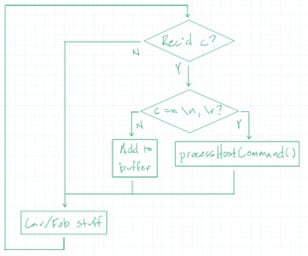
For now, run the following command in your terminal:
scons -j8 sim id=1234 pin=123456 test=1
We’ve replaced the “all” target with “sim”, which directs scons to build all roles for just the simulator. In addition, we’ve dropped ui=console (the applications will run “headless” for this project) and we’ve set the “test” parameter to 1, which will add TEST_BUILD to the list of defines when our source code is compiled. Defining TEST_BUILD causes the source code to include a number of HOST commands that they wouldn’t normally respond to, such as btnPress and isPaired for a fob, isLocked and getUnlockCount for a car. You can see this in the simplified versions of processHostCommand() for each firmware, below.
Fob
void processHostCommand(FLASH_DATA *fob_state_ram, const char *cmd)
{
  if (strncmp(cmd, "enable ", 7) == 0){...return;}
  if (strncmp(cmd, "pair ", 5) == 0){...return;}

#ifdef TEST_BUILD
  if (strcmp(cmd, "btnPress") == 0){...return;}
  if (strcmp(cmd, "isPaired") == 0){...return;}
  if (strcmp(cmd, "getFlashData") == 0){...return;}
  if (strncmp(cmd, "setFlashData ", 13) == 0){...return;}
  if (strcmp(cmd, "reload") == 0){...return;}
  if (strcmp(cmd, "reset") == 0){...return;}
#endif

  sendError("unknown command");
}
Car
void processHostCommand(const char *cmd)
{
#ifdef TEST_BUILD
  if (strcmp(cmd, "isLocked") == 0){...return;}
  if (strcmp(cmd, "getUnlockCount") == 0){...return;}
  if (strcmp(cmd, "reset") == 0){...return;}
#endif

  sendError("unknown command");
}
You can use these commands to see what’s going on inside the firmware much more interactively. Do that now by starting the simulator:
./tools/simulate.py
hardware/sim/build/paired_fob_1234/paired_fob_1234
hardware/sim/build/car_1234/car_1234
No windows open this time (since you didn’t supply ui=console to scons), but rest assured, the fob and car firmware are running in the background.
Now connect to the applications using the monitor.py tool, which is essentially just a simple serial terminal (with one small exception). Enter the following, each in a separate terminal window:
./tools/monitor.py {fob port}
./tools/monitor.py {car port}
Now you can send commands to the applications and observe their responses! Test it out by typing isLocked and pressing Enter in the window connected to the car; you should see OK: 1, meaning that the car is reporting that it is currently locked. Similarly, typing getUnlockCount + Enter should result in OK: 0 (no successful unlocks, yet).
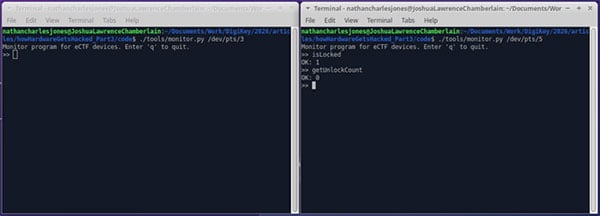
Then type btnPress + Enter in the window that’s connected to the fob. Although you won’t see an unlock flag (that feature is suppressed when TEST_BUILD is defined), you will be able to observe the car window report that it’s now unlocked! If you enter isLocked and getUnlockCount again in the car window, they will report that the car is not locked and that it’s been unlocked once.
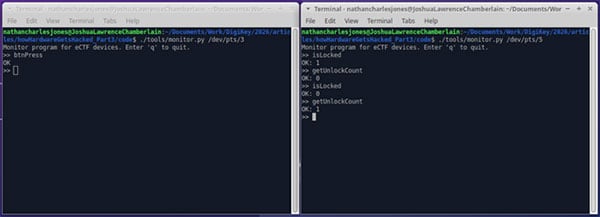
The btnPress command triggered the fob to conduct an unlock action, just as if the physical button were pressed; in fact, they both call the exact same function.
fob.c, lines 121, 122
// Paired fob: check for button press
if (buttonPressed())
{
  attemptUnlock(&fob_state_ram);
}
fob.c, lines 159-164
// Test command: btnPress (simulate btn
// press, blocks until unlock completes)
if (strcmp(cmd, "btnPress") == 0)
{
  attemptUnlock(fob_state_ram);
  return;
}
The importance of this is huge because now we can control our hardware entirely from software. Like we’ve just seen, this makes interacting with the firmware and doing any manual testing much more interesting. Additionally, and MUCH more importantly, we’ll use this in the last build to enable tests that can interact with either the real hardware or a simulation.
Challenge question!
What other test commands would be nice to have? How would you add them?
The last thing you’ll do with this build is enable a feature, which also demonstrates the one aspect of monitor.py that makes it more than a simple serial terminal. First, enter the getFlashData command and notice that the last six bytes of the returned value are “00 00 00 00 00 00”; these correspond to the number of active features (00), the (up to three) feature numbers that are active (00, 00, 00), and two bytes of padding (00 00) (based on the memory layout for FLASH_DATA). In the fob console window, now type enable application/features/1234_1 + Enter. The monitor.py tool identifies the word “enable” and replaces the file path that follows it with the binary values that are in that file before sending it to the application.
You can confirm this succeeded (other than by seeing the OK response in the fob monitor window) by entering the getFlashData command again. The last six bytes of the resulting value now show “01 01 00 00 00 00”, indicating that one feature has been enabled and that that feature is feature 1.
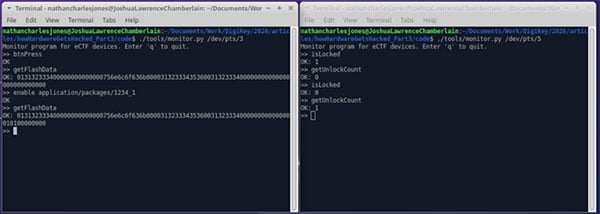
This way, you don’t need to detach from and then reattach to the fob’s serial port in order to enable a feature (with the enable.py tool) while you’re trying to interact with it (which you would have to do if you were using a regular serial terminal).
Here’s another video of me running the above commands.
Note: Use "sim", as the directions say, instead of "x86" as is shown in the video; this was recorded right before that change was made.
We’re almost finished with simulating our firmware, so one last note bears mentioning: the simulate.py tool can also accept a single firmware file, like this:
./tools/simulate.py
hardware/sim/build/paired_fob_1234/paired_fob_1234
The tool will still launch the application, and you will still be able to interact with it; it just won’t have anything connected to its BOARD “UART” port.
3) With real hardware
Now let’s run our code on real hardware! First, clean up the last project.
scons -j8 -c all id=1234
The -c option tells scons to remove the build files associated with whatever target we specify. In this case, for each platform, you’re removing the unpaired fob and any car or paired fobs whose IDs match “1234”. (A pin isn’t required for cleaning.)
Now you’ll build a paired fob for the STM32. If you want to build just one executable, you need to specify both the platform and the role.
scons -j8 platform=stm32 role=paired_fob id=2345 pin=987654 debug=1
test=1
This will be one of the last times we use scons, so I’ll also mention that there are two other flags that can be set when running it:
- opt=[0,1,2,3,s]: Sets the optimization level, e.g. opt=0 adds “-O0” to the list of C/C++ flags. The default is -O2.
- debug=[1,0]: When set to 1 (or “true” or “yes”), adds “-g” and “-DDEBUG” to the list of C/C++ flags. The default is 0 (no flags).
Connect your STM32 to your computer with a USB cable. To flash our firmware to it, you’ll need to know the serial number of the on-board ST-Link, which we can find by running the list.py tool:
./tools/list.py
This tool scans your computer's ports for any devices with a non-empty name and prints their information (if any are found).

Now you can use the openocd.py tool (which, not surprisingly, uses OpenOCD) to flash your device.
./tools/openocd.py flash stm32 {SN}
hardware/stm32/build/paired_fob_2345/paired_fob_2345.bin
Provided you saw a success message, your STM32 should be running the paired fob firmware right now! Test it like before using the monitor.py tool:
./tools/monitor.py {fob port}
Test out a few of the commands, like isPaired or enable (be sure to package a feature first!).
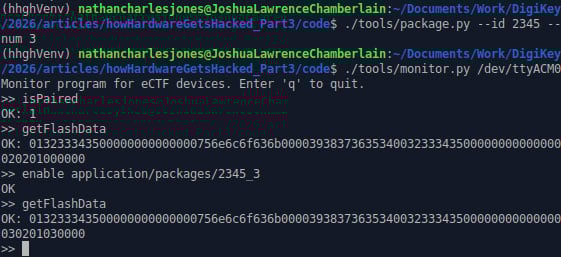
Note: I'd previously enabled features 1 and 2 when I took this screen capture.
(Sidebar: Isn’t it so cool that we can interact with real or simulated hardware in exactly the same way??)
Challenge activity!
Confirm that your enabled features persist power cycles by pressing the reset button on your development board and checking that they are still there.
The openocd.py tool also gives you an easy way to start a GDB server for debugging.
./tools/openocd debug stm32 {SN}
By default, this opens up a GDB server on port 3333. You can connect to it from regular, old command-line GDB, but I prefer to use gdbgui.
gdbgui -g "gdb-multiarch -ex 'target remote localhost:3333'" --args
hardware/stm32/build/paired_fob_2345/paired_fob_2345.bin
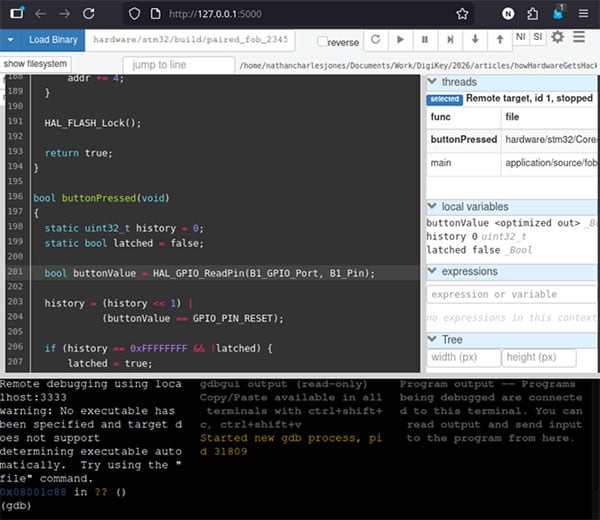
Here’s a third video of me running the above commands.
4) Testing
At this point, we have a plethora of options for building and manually testing our project:
- We can build our firmware for real hardware or for a simulated version on your computer
- We can interact with the firmware via the real hardware (pressing the actual button) or via a console-based simulation (building with ui=console and then pressing ‘b’ in the fob window)
- We can enable more introspective commands like isPaired and getUnlockCount from the HOST serial connection (after building with test=1)
The last thing we might want to do is automate these tests. For instance, it would be great to test, like we just did, that a newly built car reports that it’s locked, and then reports that it’s unlocked (with exactly one unlock count) after a correctly paired fob unlocks it, all from software. Maybe we’d like to write that test like this:
def test_paired_fob_can_unlock_car(self, car_and_paired_fob):
    car, fob = car_and_paired_fob
    assert proto.is_locked(car), "Car should start locked"
    resp = proto.cmd_btn_press(fob)
    assert resp.success, f"btnPress failed: {resp.error}"
    assert not proto.is_locked(car), "Car should be unlocked"
    assert proto.get_unlock_count(car) == 1, "Unlock count should be 1"
In fact, that’s not pseudocode, that’s a real test that you can run right now! It’s defined in testing/test.py, and you can run it (along with all other tests in tests.py) using the following command:
pytest testing/test.py
These tests assume only that they are connected via serial to a car or fob, and it’s no coincidence that the test above appears to be using our test commands (isLocked, btnPress, isLocked again, and getUnlockCount) to conduct its test.
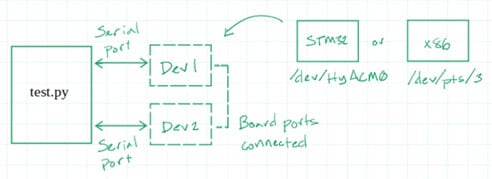
These are “black box” tests, meaning that the tests only care that, for a given set of inputs, the outputs match an expected value. I did that intentionally so every test can run against both the real hardware and the simulated applications. This allows you to test the application logic independent of the hardware-specific implementation details.
The helper file conftest.py builds and starts the desired executable (real or simulated) based on which test is running, so the tests only have to worry about talking to a “device” over serial. The helper file protocol.py gives us easy ways to send test commands to each device and verify their responses.
By default, pytest testing/test.py runs all tests against the simulated versions of the firmware. To run the tests against real hardware, ensure you have two development boards connected to your computer (with their BOARD UART ports connected together) and then run pytest with the --using flag:
pytest testing/test.py --using stm32@{SN1},{SN2}
(These tests, unfortunately, will run much more slowly than before since the hardware is getting reflashed for each test.)
Challenge activity!
If you haven’t yet, run pytest testing/test.py to see it in action. Then attach your development boards and run the same tests on the hardware.
Some useful pytest flags include:
- -v Verbose output
- -x Halt on first failing test
- -s Don’t suppress print statements
You can also specify that a specific class or category of tests is run, e.g.
pytest testing/test.py::TestSinglePairedFob
You can also specify the serial number for a single attached piece of hardware, but you’ll get an error when the tests that require two devices are run (car + paired fob, paired fob + unpaired fob, etc.), unless you tell pytest to only run the single-device tests.
# Works; only needs one unpaired fob
pytest testing/test.py::TestSingleUnpairedFob --using stm32@{SN1}
# ERROR: requires both a car and a paired fob
pytest testing/test.py::TestCarAndPairedFob --using stm32@{SN1}
Okay, one last video of me running the above commands!
Challenge question!
Take a closer look at test.py. What tests would you add? How would you add them? (Take a closer look at protocol.py, also, to see what helper functions you have available for conducting your tests.)
Secrets
In its current form, this project only has two “secrets”:
- the password for unlocking the car and
- the pin for pairing a new fob.
Both are generated at build-time when scons runs either tools/car_gen_secret.py or tools/fob_gen_secret.py, resulting in a file called secrets.h to be written to the build folder.
#ifndef __FOB_SECRETS__
#define __FOB_SECRETS__

#define PAIRED 1
#define PAIR_PIN "123456"
#define CAR_ID "1234"
#define CAR_SECRET "1235"

#define PASSWORD "unlock"

#endif
car_gen_secret.py also adds new car IDs to secrets/car_secrets.json (alongside a “car secret”, which is just the car ID + 1).
{
    "1234": 1235,
    "2345": 2346,
}
The “car secret” is representative of a system secret that’s specific to each car or fob but needs to be tracked across different builds (AES keys, anyone?), though it’s not currently being used by the car or fob firmware.
Lastly, the competition organizers provided a placeholder makefile to also generate one-time system-wide secrets before any device is built (in secrets/secrets.mk). At the moment, all this file does is emit “SECRET!” to secrets/global_secrets.txt, but in the future it could be used to generate system-wide AES keys or something like that.
In summary, there are two times when secrets are generated during the build process.
The first is before any device is built, using secrets.mk. This is shown in the pipeline step below called “Build deployment”. We’re not doing anything during this step, currently, but we likely will in the future. This step is executed once, and then all of the devices are built using any generated secrets.
 We’ll be ignoring the first two steps in the pipeline above since we’re not using Docker as the actual competition did.
The second time secrets are generated is when each device is built, shown above in the “Build {unpaired fob, car, paired fob}” steps. This happens when scons calls *_gen_secret.py before building any firmware. The *_gen_secret.py scripts update car_secrets.json and create the secret.h header file used by the device being built.
Per the competition rules, the attackers essentially have access to a team’s entire Git repository but not to any of the build artifacts, except the final binary files in a few cases. In this case, that means
Attackers CAN access
- secrets.mk
- car_gen_secret.py
- fob_gen_secret.py
but they CAN’T access
- car_secrets.json
- global_secrets.txt
- secrets.h
This has significant implications for how we generate our secrets, since we don’t want our attackers to be able to easily guess what’s in secrets.h based solely on what’s in car_gen_secret.py.
Challenge question!
Can an attacker identify the contents of secrets.h based solely on what’s in car_gen_secret.py? What’s one way you might be able to fix that?
What’s next?
If you haven’t done so already, download the project and run through the four builds discussed above! Doing so will help you become acquainted with the project better than any long-winded article could.
While you’re at it, review the first article and the source code for car.c and fob.c. Although we haven’t yet discussed what information would be important to an attacker and how they might conduct their first attack, you can probably already see some suspicious design choices. In particular, you might ask yourself when looking at our code:
- Where are there known bugs in the source code?
- Where are there “interesting oddities” (things in the code that might not work perfectly every time)?
- What could an attacker do to put the system into an undefined state such that it might give up those precious, precious flags stored in memory?
In the next article, we’ll elaborate on those questions, building an understanding of our design’s vulnerabilities that will enable our first attack!
If you’ve made it this far, thanks for reading and happy hacking!