Settings
 Fast Delivery
 Free Shipping
 Incoterms
 Payment Types


 Marketplace Product

PlatformIO + VS Code: The Smarter Way to Program Microcontrollers
2025-12-22 | By Hector Eduardo Tovar Mendoza
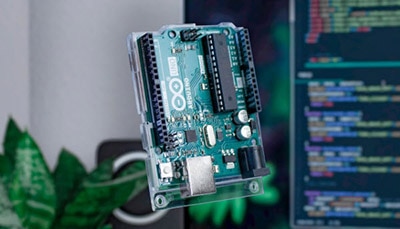
My journey into embedded systems started, like many of yours, with the iconic blue Arduino board and its simple, friendly IDE. That first time I uploaded the Blink sketch and saw the onboard LED spring to life felt like magic. The Arduino IDE was the perfect starting point; it got me from zero to blinking in minutes, and for that, I'll always be grateful.
But then, my projects started to grow, and that’s when the limitations became obvious. My breaking point came while prepping our robot for the LARC OPEN competition. My goal was to write clean, modular code by properly separating our subsystems for sensors and actuators, something you can see we aimed for in the final project repository (Code). However, the reality of managing this in the Arduino IDE was pure chaos.
My project folder became a tangled mess of manually added library folders for all our different components. Worse, since we were prototyping parts of the code sometimes in an Arduino Mega or an ESP32, every board switch was a nerve-wracking ritual of manually changing settings and re-checking library compatibilities. It was slow, frustrating, and the complete opposite of the clean, professional structure I was trying to build. It was then that I knew there had to be a better way.
That’s when I discovered PlatformIO.
So, what is PlatformIO?
PlatformIO isn't just a replacement for the Arduino IDE; it's a complete, professional development ecosystem that plugs right into a modern code editor like Visual Studio Code (VS Code). Think of it as upgrading from a simple hand drill to a full-featured drill press. Both make holes, but one gives you far more power, precision, and control.
While the Arduino IDE is a self-contained tool perfect for beginners, PlatformIO is an extensible framework designed for scalability and professional workflows.
Setting Up VS Code + PlatformIO
Here’s how to get started:
Step 1: Install VS Code
- Download VS Code from code.visualstudio.com
- Install it like any other application.
Step 2: Install the PlatformIO Extension
- Open VS Code.
- Go to the Extensions Marketplace (left sidebar).
Search for PlatformIO IDE and install it.

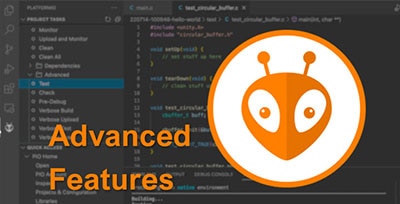
- Once installed, you’ll see a little alien icon on the sidebar.

Creating Your First Project in PlatformIO
Let’s build a classic Blink example to get familiar with the workflow.
Step 1: Create a New Project
- Open the PlatformIO Home (click the alien icon).
- Select New Project.
- Name it Blink.
- Choose your board (e.g., Arduino Uno, ESP32 Devkit, etc.).
- Select a framework (usually Arduino).
- Click Finish.
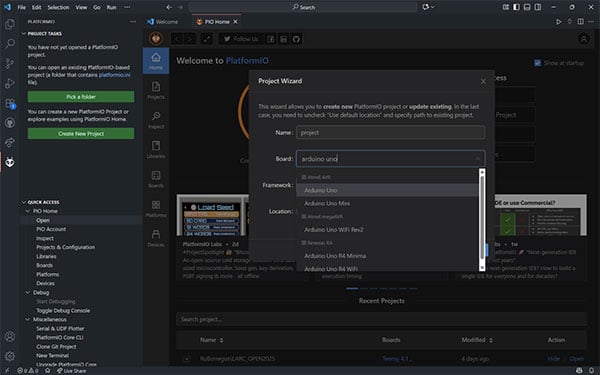
PlatformIO will create a structured project with folders for src, lib, and configuration files.
Step 2: Write the Blink Code
Navigate to src/main.cpp and replace the contents with:
#include <Arduino.h>
void setup() {
  pinMode(LED_BUILTIN, OUTPUT);
}

void loop() {
  digitalWrite(LED_BUILTIN, HIGH);
  delay(1000);
  digitalWrite(LED_BUILTIN, LOW);
  delay(1000);
}
Step 3: Compile and Upload
- Click the check mark (build) icon in the bottom bar to compile.
- Click the right arrow (upload) icon to flash it to your board.
Step 4: Monitor Logs
- Click the plug icon (Monitor) to open the Serial Monitor.
- You’ll see your program logs or debug output here.
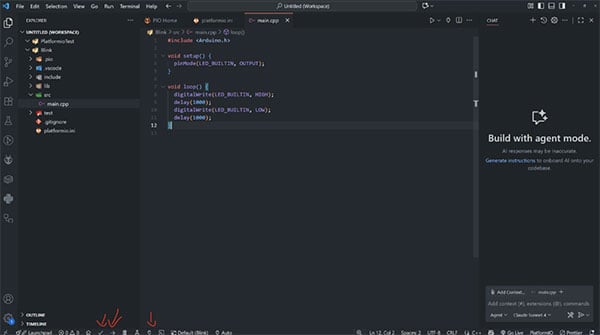
Understanding the PlatformIO Project Structure
include/
This folder is for header files (.h).
- Use it to declare functions, constants, or global variables.
- Keep your code organized when projects grow larger.
lib/
- This folder is for custom project-specific libraries.
- Each library gets its own subfolder.
- Inside each subfolder, you typically create a src/ directory with .cpp and .h files.
src/
This is the main source code folder.
- Contains main.cpp (the entry point).
- You can also add extra .cpp files if you split code into modules.
test/
This folder is for unit tests.
- It lets you write small test programs to validate logic.
- Works with PlatformIO’s built-in testing framework.
platformio.ini
The project configuration file.
- Defines environment settings like board type, framework, libraries, and upload speed.
- This is where you tell PlatformIO how to build and upload your code.
What Finally Convinced Me to Switch?
It wasn't just one feature, but a combination of things that solved every major frustration I had with the Arduino IDE, especially when it came to teamwork.
Professional Collaboration with GitHub
The biggest game-changer for my team was moving to a workflow built for collaboration. When several of us were trying to work on the robot's code, using the Arduino IDE was a mess. We were constantly sharing .ino files back and forth, leading to confusion about which version was the latest.
As I've discussed in my previous posts, using a proper branching strategy in Git is essential for any team project. Trying to manage feature branches and pull requests when your core project files aren't easily tracked was nearly impossible. PlatformIO, by integrating directly into VS Code, brought a professional Git and GitHub workflow to our embedded project. We could finally collaborate effectively, review each other's code, and merge changes without the fear of overwriting someone's work.
Unmatched Project Organization
This new level of control went beyond just version control. The organization PlatformIO provides is second to none:
- A Library Manager That Actually Manages: Instead of team members manually downloading .zip files and hoping they got the right version, we could define all our dependencies in the platformio.ini file. This became our single source of truth. When a new person joined the project, they just had to run one command, and PlatformIO would install the exact correct versions of every library. No more conflicts or "library not found" errors.
- Juggling Boards Became Effortless: Remember my Uno and ESP32 problem? We solved that for the whole team by defining different build "environments" in that same configuration file. Anyone could compile and upload the code to different hardware just by clicking a button in the status bar, ensuring our code worked consistently for everyone.
- A Real-Deal Code Editor: On top of all this, we got the benefits of a modern editor like IntelliSense for smart code completion and powerful debugging tools, which made finding and fixing bugs faster than just using Serial.print().
Is It Worth It?
Moving from the Arduino IDE to PlatformIO felt like a big leap at first, but it was an investment that paid off almost immediately. It streamlined my workflow, organized my projects, and ultimately allowed me to focus on building cool things instead of fighting with my tools.
If you're starting to feel the growing pains of the Arduino IDE, I can't recommend PlatformIO enough. Give it a try with your next project. Trust me, once you experience that level of control and organization, you’ll never look back.